
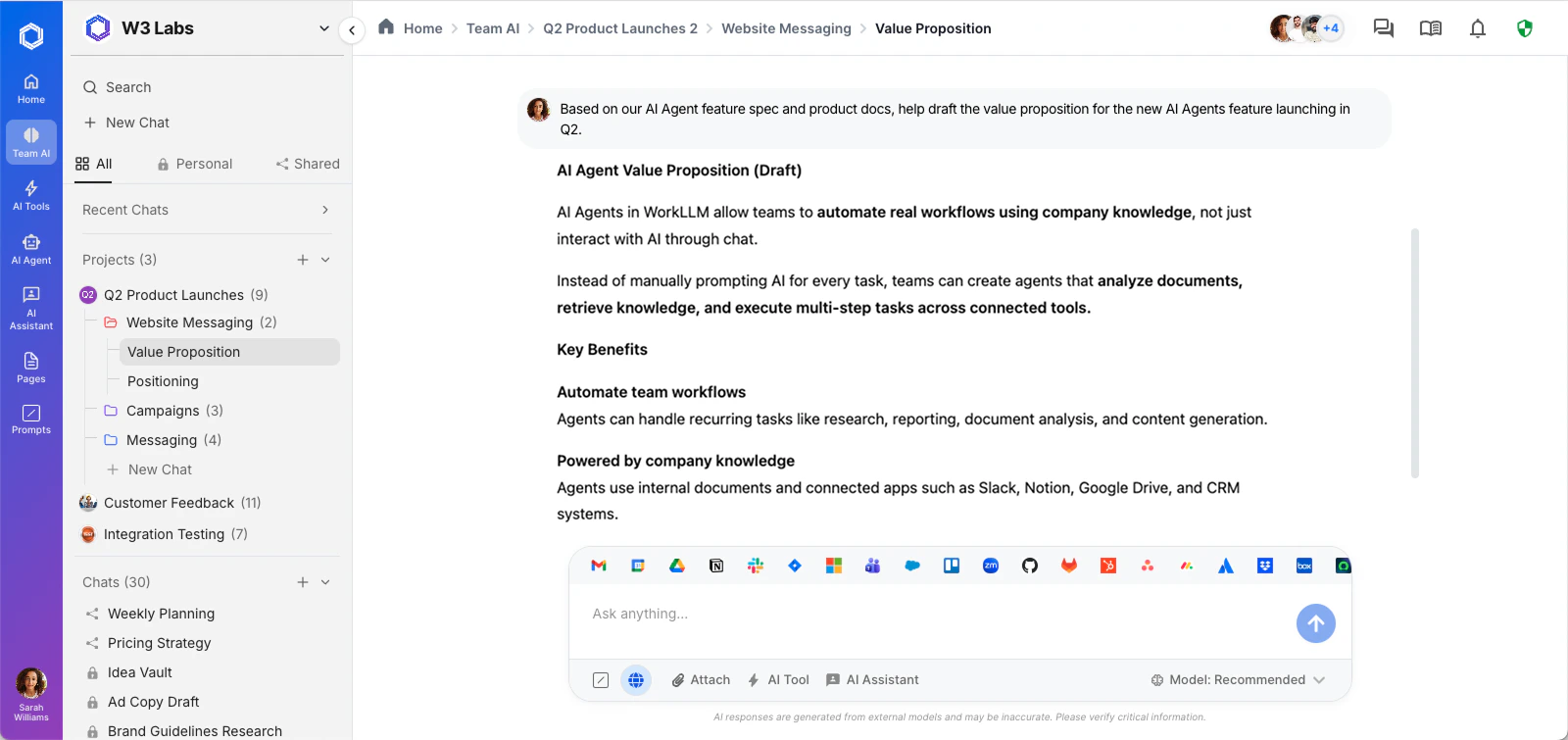
Workspace layout
The workspace is divided into three main areas that stay consistent across all features.Left sidebar
Primary navigation. Access all features, start new chats, and open settings from here.
Main area
Where you work. Displays your active chat, document, assistant, or agent depending on what you’ve selected.
Right panel
Contextual information for your current session — including active memory layers, thread details, and quick actions.
Left sidebar
The left sidebar is your primary way to move through WorkLLM. Each section opens a different part of the workspace in the main area.New Chat
New Chat
Click New Chat at the top of the sidebar to open a fresh conversation. Select an AI model from the model picker, type your message, and press Enter to begin. Each conversation is saved automatically and appears in your thread history below the navigation.
Team AI
Team AI
Opens shared AI threads where your team can collaborate in real time. Co-prompt with colleagues, comment on AI responses, and build on each other’s work — all in a single shared conversation. Team AI threads are visible to everyone in the workspace unless restricted by your Admin.
AI Assistants
AI Assistants
Lists the AI Assistants available in your workspace. Assistants are role-based AI personas trained on your team’s knowledge — a support assistant that knows your product, a legal assistant that understands your policies, or an onboarding assistant for new hires. Click any assistant to start a conversation with it.
AI Agents
AI Agents
Opens your configured AI Agents — automated workflows that monitor triggers and take actions without requiring manual prompts. Agents can watch for emails, calendar events, form submissions, or other signals and respond with AI-generated actions.
AI Tools
AI Tools
A collection of reusable one-click prompt tools. Each tool is a pre-configured prompt with built-in guardrails, designed for a specific task like summarizing a document, drafting a response, or generating a report. Run a tool by clicking it and providing any required inputs.
Prompts
Prompts
Your team’s shared Prompts Library. Save, organize, and reuse prompt templates across the workspace. Prompts can be personal (visible only to you) or shared with the whole team. Open a prompt and click Use to load it into a new chat.
Reports
Reports
AI usage analytics for your workspace. View message volumes, model usage, LLM cost breakdowns, and team activity. Admins can use Reports to monitor governance, track adoption, and manage spending across the organization.
Switch between features
To move between features, click the relevant item in the left sidebar. The main area updates immediately to show the selected feature. Your current chat or work is preserved — switching to Reports and back to a chat, for example, keeps your chat session intact.Model picker
Every chat in WorkLLM lets you choose which AI model handles your request. The model picker appears at the top of the chat input area.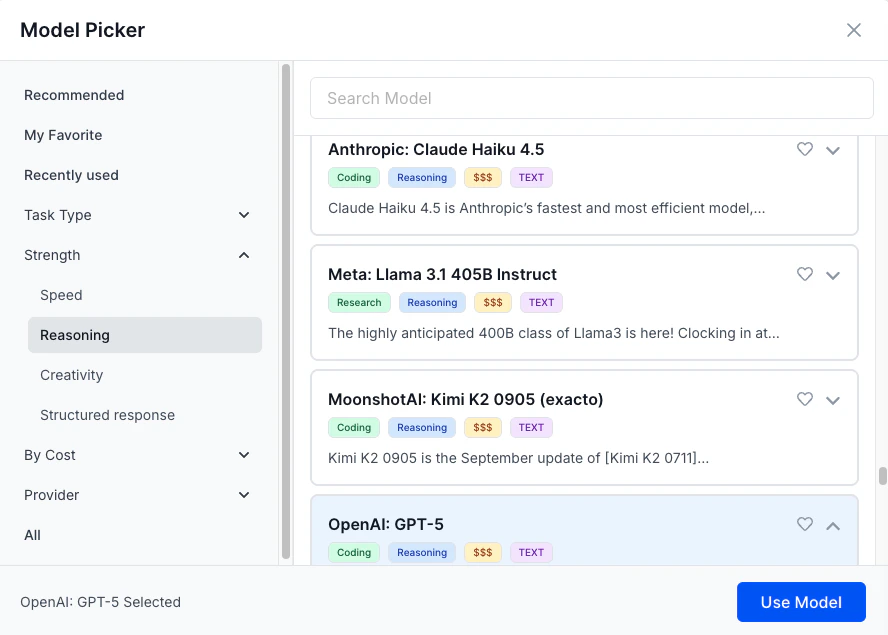
Open the model picker
Click the model name displayed above the message input. A dropdown lists all models available to your workspace.
Select a model
Click the model you want to use. The selection applies to your next message and stays active for the rest of the conversation unless you change it.
The models available in your workspace depend on which ones your Admin has enabled under Settings → Models. If a model you need isn’t listed, ask your Admin to enable it.
Memory layers
WorkLLM uses a layered memory system so context builds over time rather than resetting after every conversation. The right panel shows which memory layers are active in your current session.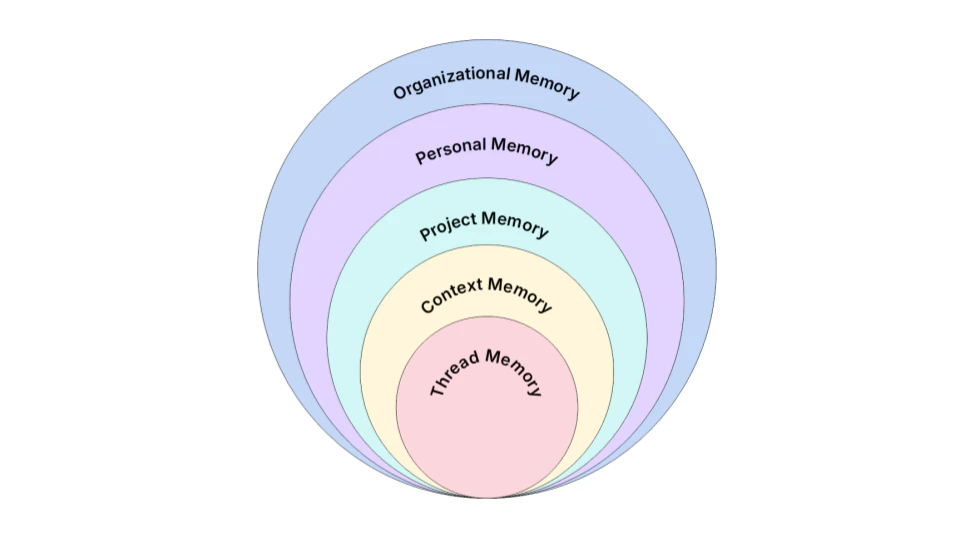
Thread memory
Active only within the current conversation. Everything said in this thread is available to the AI as context for follow-up messages.
Project memory
Shared across all threads within a project. Useful for keeping product specs, briefs, or background information available throughout a body of work.
Team memory
Available to all members of a team. Stores shared knowledge like processes, glossaries, or team-specific context that everyone should have access to.
Personal memory
Private to you. WorkLLM stores your individual preferences, writing style notes, and personal context here. Other team members cannot see your personal memory.
Organization memory
Company-wide knowledge accessible to all workspace members. Admins control what goes into organization memory. It’s typically used for company policies, brand guidelines, and shared reference material.
Search
Use the search bar at the top of the left sidebar to find content across your workspace.Open search
Click the magnifying glass icon or press Cmd+K (Mac) / Ctrl+K (Windows) to open the search bar.
Type your query
Enter keywords from a thread, document, prompt name, or assistant. Results appear as you type and include matches from your own threads, shared Team AI threads, and the Prompts Library.
Workspace settings
Access workspace settings by clicking Settings at the bottom of the left sidebar. Settings is organized into sections:| Section | What you can do |
|---|---|
| Organization | Update your organization name, timezone, and branding |
| Members | Invite teammates, assign roles, and manage access |
| Models | Enable or disable AI models available to your team |
| Integrations | Connect Gmail, Slack, Notion, Jira, GitHub, Salesforce, and more |
| Billing | Manage your subscription, payment method, and plan |
| Audit Logs | Review a full log of workspace activity (Admin only) |
Some settings sections are only visible to Admins. If you need access to a restricted section, contact your workspace Admin.