
Starting a conversation
Open a new chat
Click New Chat in the left sidebar. A blank conversation opens with the model picker visible at the top of the input area.
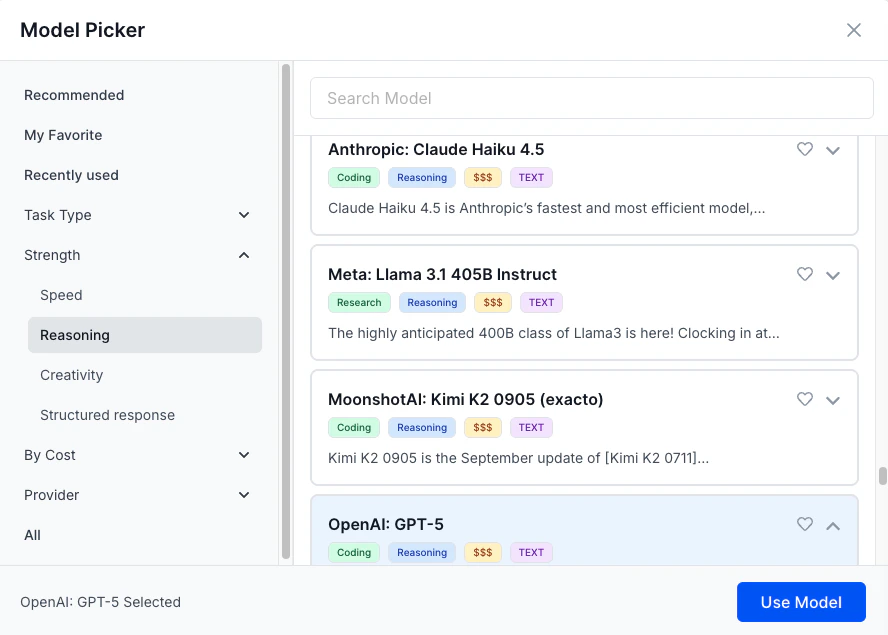
Select a model
Click the model picker and choose from the list of models enabled for your organization. If you are unsure which model to use, select Auto — WorkLLM analyzes your prompt and routes it to the most suitable model automatically.
Choosing the right model
Each model has different strengths. Use this as a starting point:GPT-4o
Best for reasoning-heavy tasks, coding, structured data generation, and step-by-step problem solving.
Claude 3.5 Sonnet
Best for long-form writing, nuanced analysis, document summarization, and tasks requiring careful tone control.
Gemini 1.5 Pro
Best for multimodal tasks — working with images, mixed media, and large-context reasoning across long documents.
Llama 3
An open-weight model well-suited for general-purpose tasks and environments with data residency requirements.
Mistral Large
Efficient and fast for instruction-following, classification, and workloads where speed and cost matter.
Recommended
Let WorkLLM pick the best model for each prompt. Useful when you are not sure, or want to optimize automatically.
Switching models mid-conversation
You can change models at any point in a conversation without starting over. WorkLLM preserves the full thread context so the new model has the same history to work from. To switch models:- Click the model picker above the input field.
- Select a different model from the list.
- Send your next message — it is processed by the newly selected model.
Switching models mid-conversation does not regenerate previous responses. Only new messages use the selected model going forward.
Viewing conversation history
All your conversations appear in the left sidebar under Chats, sorted by most recent. Click any conversation to resume it with the full context intact. WorkLLM stores conversation history for as long as your organization retains data, based on your plan and settings. Use the search bar at the top of the sidebar to find a specific conversation by keyword.Sharing a conversation
You can share a conversation with a teammate directly from the chat view.Open the share menu
In an open conversation, click the Share icon in the top-right corner of the chat window.
Choose visibility
Select whether to share with a specific teammate, your team, or your organization. You can also generate a read-only link for teammates to view the thread without editing it.
Can I use multiple models in the same conversation?
Can I use multiple models in the same conversation?
Yes. Switch the model picker at any point during a conversation. Each message can use a different model. The full thread history is passed as context to whichever model is currently selected.
How does Auto model selection work?
How does Auto model selection work?
WorkLLM evaluates the content and intent of your prompt and routes it to the model most likely to give a high-quality response. The selected model is shown next to each response so you can see which model was used.
Which models are available to me?
Which models are available to me?
Your organization’s Admin controls which models are enabled. Go to Settings → Models to see the currently enabled list. Contact your Admin if a model you need is not available.
Are my conversations private by default?
Are my conversations private by default?
Yes. New conversations are private to you unless you explicitly share them. Admins with the appropriate permissions can view all conversations in the organization for governance and audit purposes.